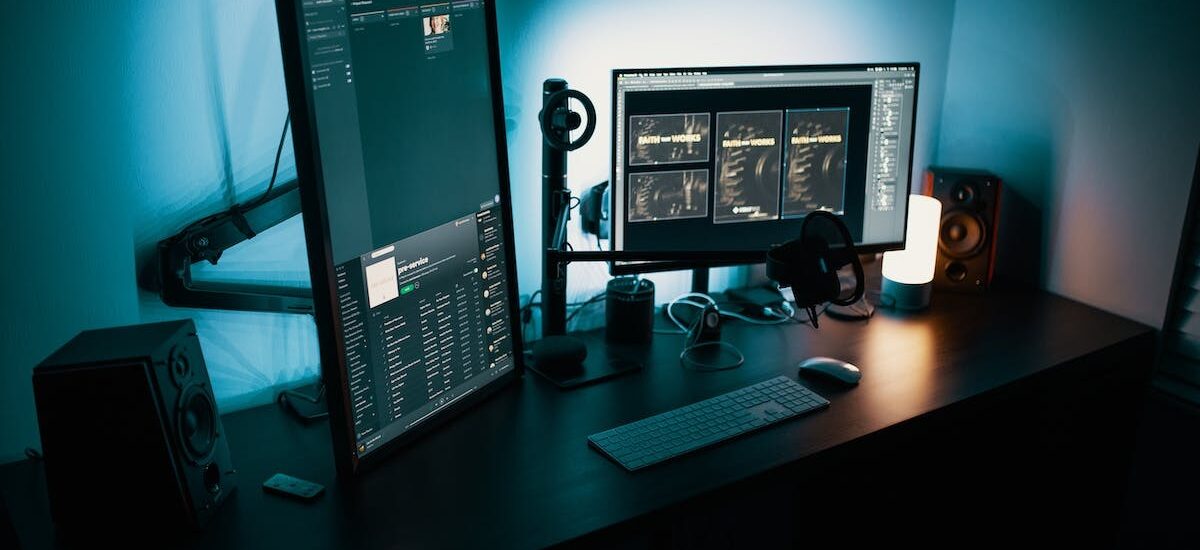
Navigating the current digital world requires optimal efficiency and productivity. For professionals juggling multiple tasks and projects simultaneously, a single laptop screen can quickly become insufficient. Fortunately, it is possible to significantly increase your digital workspace by connecting three screens to your laptop. This multi-screen setup allows you to view more information at once, easily manage multiple applications and windows, and work in a more productive and organized manner. Discover how to set up this configuration and enhance your daily efficiency.
The Power of Multiple Screens: Optimize Your Productivity
Using a ‘3 screen PC’ system proves to be a particularly wise choice in today’s professional world. This setup offers a multitude of advantages, including a notable improvement in productivity.
The first benefit of this ‘3 screen PC’ arrangement is primarily the significant enlargement of your digital workspace. This concretely means the ability to display multiple windows simultaneously without losing clarity or readability. Multitasking thus becomes not only possible but especially simple and efficient: quickly switch from one application to another, work simultaneously on three different applications without needing to minimize or maximize windows.
In addition to the comfort provided by this extended space, having a ‘3 screen PC’ system will also allow you to customize your environment according to the tasks performed: writing on the first screen, web browsing on the second while the third could be dedicated to instant communications, for example. This optimized organizational mode greatly helps to limit distractions caused by the incessant changes between different programs and applications, thus promoting concentration and efficiency.
Professionals regularly managing complex data, as is often the case for graphic designers or software developers, will also find this multi-screen device beneficial. Indeed, working with 3 PC screens offers unparalleled comfort for displaying their necessary tools and interfaces for their work.
Finally, when participating in a video conference, this setup can significantly enhance your experience: you can share your screen while keeping a clear view of your interlocutors thanks to the second monitor; meanwhile, the third could be used to consult personal notes or send instant messages during the meeting.
Let’s not forget that you need to have an appropriate graphics card and a sufficient number of available ports (HDMI, VGA). Docking stations are also an excellent option if these modern video outputs are severely lacking at your place.
Thus, opting for a ‘3 screen PC’ system seems particularly insightful as it offers versatility and efficiency; the more our virtual space increases, the more autonomy we gain.
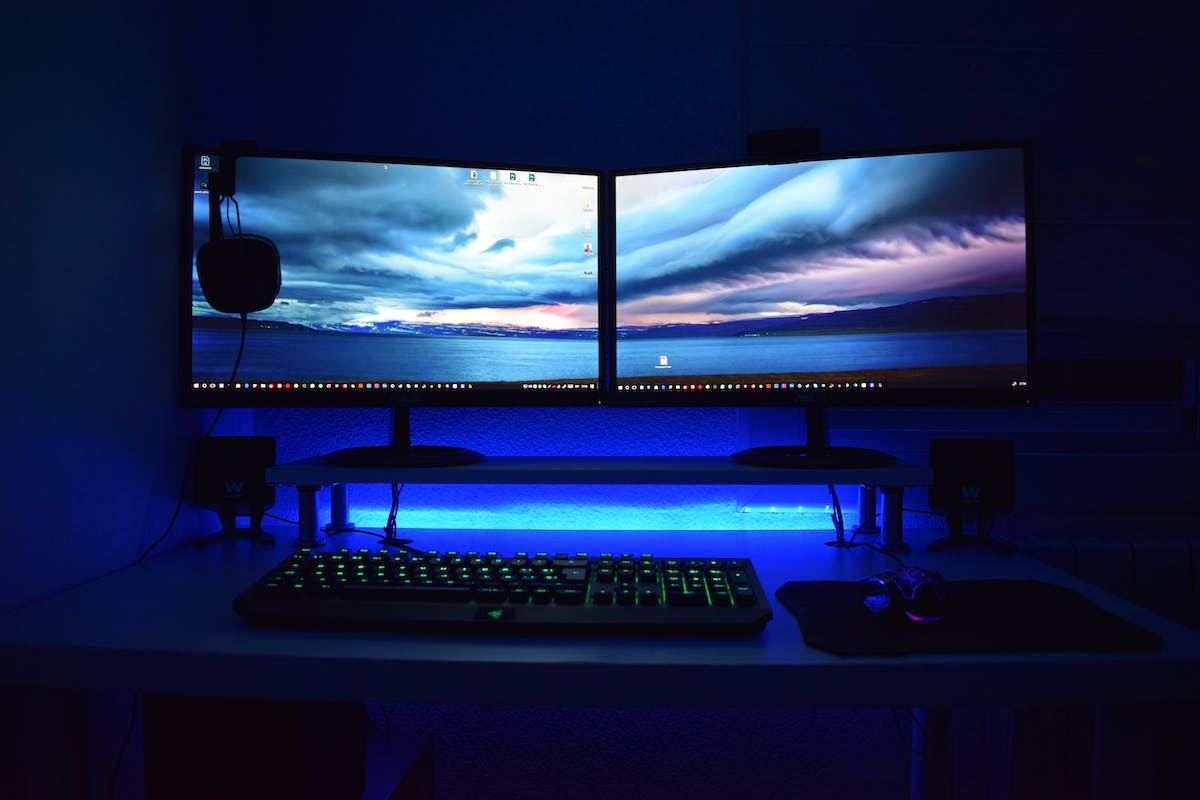
Connecting Three Screens: Undeniable Advantages
To connect three screens to your laptop and enjoy all the benefits this configuration offers, be sure to meet certain technical prerequisites. Indeed, to achieve a smooth and optimal experience, you must ensure that your hardware is compatible.
Check the graphical capacity of your laptop. Most recent models are equipped with an integrated graphics card that can handle multiple screens simultaneously. If you are working on an older model or using software that requires a lot of graphical resources, you may need a dedicated graphics card.
Make sure you have enough available video ports on your laptop to connect the three screens. HDMI and DisplayPort ports are usually the most common and offer excellent image quality. Some models also offer VGA or DVI-D ports as a supplement. So check the technical specifications of your device to know what types of cables will be necessary.
If the number of available ports does not meet your needs, don’t panic! There are alternative solutions such as USB-C docking stations that allow you to easily expand the number of available video connections. These docks combine different types of ports (HDMI, DisplayPort…) as well as additional features like power via USB-C or internet connection via Ethernet.
Once you have verified the necessary hardware compatibility to connect three screens to your laptop, it’s time to move on to practical installation. Plug the corresponding video cables into the appropriate ports on your device and each screen.
Be sure to adjust the display settings of your laptop to properly configure the additional screens. On Windows, for example, you can access the graphics control panel to extend the desktop or duplicate the main screen according to your needs.
Once everything is correctly configured, you will fully enjoy the benefits offered by this multi-screen arrangement. Your workspace will be enlarged, allowing for better organization and greater productivity. You will be able to easily switch between different tasks without needing to minimize or maximize windows constantly.
Connecting three screens to your laptop can be a real asset for optimizing your productivity. Just ensure that your hardware is compatible and meet the necessary technical prerequisites. Once these steps are successfully completed, you will be ready to fully enjoy the many advantages this multi-screen setup offers in the modern professional world.
Prerequisites for Connecting Three Screens to Your Laptop
To connect three screens to your laptop and maximize your productivity, there are different connection options available. You can opt for the traditional method using the integrated video ports of your device or turn to more advanced solutions such as multi-screen USB-C adapters.
The first option is to use the native video ports of your laptop. Most modern models are equipped with an HDMI and/or DisplayPort that can be used to connect an external screen. If you have two video ports, you can easily plug in two additional monitors without needing extra equipment.
If your needs exceed the number of ports available on your laptop, don’t panic! There is a variety of adapters and cables that can help you connect multiple screens simultaneously. USB-C to HDMI or DisplayPort adapters are widely available on the market and offer a practical solution to extend your display space.
Another interesting solution is to use USB-C docking stations with multiple video connections. These docks combine various types of ports such as HDMI, VGA, or DisplayPort, allowing not only easy connection to external monitors but also to other peripherals like keyboards, mice, or printers. Increasingly popular due to their versatility and ease of use, these docks offer a simple and effective way to further enhance your multitasking capabilities.
If you are looking for a wireless solution to connect your external screens, you might consider using technologies such as Wi-Fi Display or streaming via devices like Chromecast or Apple TV. These devices allow you to wirelessly project the content of your laptop onto a compatible external screen to extend your workspace.
Also, consider mentioning multi-screen setups for demanding professionals who require superior graphical power. In this case, you may need to invest in an external graphics card (GPU) to increase your laptop’s graphical capacity and support multiple monitors simultaneously. This can be particularly useful for 3D designers, video editors, or gamers who need smooth and fast rendering.
Whichever option you choose, be sure to ensure that your laptop meets the required technical requirements. Make sure you have enough available ports and check if specific adapters are needed to connect your external screens.
Connecting three screens to your laptop is now possible thanks to the various options available on the market. Whether you choose the traditional method using the integrated video ports or prefer to explore more advanced solutions like multi-screen USB-C adapters, there is certainly a solution that fits your needs. Fully leverage these technological opportunities to significantly improve your productivity and optimize your professional performance.
Setting Up Three Screens: Simple Steps for an Optimal Experience
Once you have chosen the appropriate connection method for your needs and checked your laptop’s compatibility, it’s time to explore tips that will help you maximize your productivity with three screens.
Organize your workspace: Before starting, think about the physical arrangement of the screens. Ensure they are placed in an ergonomic position that facilitates your concentration and minimizes eye strain. You can use a stand or an adjustable arm to adjust their height and angle according to your preferences.
Configure the display resolutions: Once your screens are connected, take the time to adjust the display resolutions to optimize the available space. You can extend your virtual desktop across the three screens or choose a specific configuration (for example, two screens in landscape mode and one in portrait mode) according to your needs.
Use virtual desktops: Virtual desktops are a handy feature available on some operating systems (like Windows). They allow you to create multiple distinct workspaces where you can organize your windows and applications. This can be particularly useful when using multiple monitors as it avoids visual clutter between different tasks or projects.
Leverage keyboard shortcuts: To save time in managing windows across three screens, familiarize yourself with the keyboard shortcuts dedicated to multitasking. For example, on Windows, you can use the ‘Windows + left/right arrow’ key combination to move a window from one screen to another or ‘Windows + up/down arrow’ to maximize or minimize its size.
Customize your taskbar: If you are using an operating system that allows taskbar customization (like Windows), take advantage of it to optimize its use across three screens. You can choose to display application buttons only on the screen where they are active, making it easier to switch between different windows without confusion.
Maximize Your Productivity: Tips to Get the Most Out of Three Screens
Experiment with multitasking options: With three screens, you have the ability to open and manipulate multiple applications simultaneously. Fully take advantage of this setup by exploring the various options offered by your operating system to optimize your workflow. For example, on Windows 10, you can use the ‘Snap Assist’ feature which automatically resizes windows to occupy a third or two-thirds of the screen.
Use specialized tools: For advanced window management and increased productivity, there are also specific software designed to facilitate multitasking across multiple screens. These tools often offer features such as automatic grouping of windows by type (for example, all web browser windows on one screen and word processing ones on another), as well as the ability to save different display profiles tailored to your recurring tasks.
Consider wireless connections: If you want to avoid cable clutter while enjoying a multi-screen setup, know that there are also wireless solutions to connect your monitors to your laptop. Technologies like Wi-Fi Direct or Miracast allow for smooth transmission of video signals to your screens without requiring complex cabling.
Take care of your battery: Using three screens simultaneously puts more strain on your laptop, which can impact battery life. To avoid unpleasant surprises, ensure your laptop is plugged in when working with three screens. Remember to adjust power-saving settings to optimize energy efficiency when they are not in use.
Connecting three screens to your laptop is an effective solution to increase your productivity and facilitate your professional or personal tasks. By following these tips and exploring various window management tricks, you will be able to make the most of this multi-screen configuration to optimize your workflow and improve your daily performance.